Need to organize a spreadsheet, turn some notes into a report, or prepare for tomorrow’s meeting? Claude Cowork is Anthropic’s task capability for work like this. You describe the outcome, give Claude the relevant files or app access, and review the deliverable it produces.
Cowork is available in the Claude desktop app for Mac and Windows on all paid plans. Pro and Max include web and mobile access. On Team, web and mobile access is in beta; on Enterprise, the organization’s owner needs to enable it.
Anthropic is merging Chat and Cowork, so your account may have no Cowork button.
Below: how Cowork works, setup, 8 real tasks with screenshots, Cowork vs Chat vs Claude Code, pricing, and safety.
Key terms used in this guide: AI agent, tool use, and prompt injection.
Claude Cowork at a glance
| Question | Current answer |
|---|---|
| What is it? | Claude’s ability to carry out multistep tasks with tools and return work for review. |
| Which plans? | Pro, Max, Team, and Enterprise. |
| What platforms? | Mac and Windows desktop; web, iOS and Android (subject to plan/admin conditions). Team web/mobile access is BETA. |
| What can it access? | Shared files, connected folders, allowed apps. When Cowork needs files on your computer, keep Claude Desktop open and connected to the internet. |
| Why is my screen different? | If you do not see controls, check for an app update. The combined chat/Cowork interface is being released gradually, and your organization may restrict some features. |
| Last verified | October 27, 2026. |
How Claude Cowork handles a task
Cowork lets you delegate a sequence of actions through a visual interface. For example, you can ask Claude to read three notes files, extract decisions, build an action table, and save a report. You can inspect its approach and redirect the task as it runs.
Think of the process in four stages:
- Task: Describe the result you expect and provide the inputs.
- Plan: Claude plans the task and breaks complex work into subtasks when needed.
- Actions: Claude runs code and shell commands in an isolated environment on Anthropic’s servers. It coordinates multiple workstreams in parallel when appropriate.
- Review: Review the output before using it.
Cloud execution means Claude’s task runs on Anthropic’s servers. Claude accesses connected folders on your computer through Claude Desktop. The contents of files it opens are sent to Anthropic’s servers for processing. Keep the app open when the task needs those files.
Claude chat vs Cowork vs Claude Code
The Chat column describes accounts that still have a separate Chat mode.
| Category | Regular Claude chat | Cowork task workflow | Claude Code |
|---|---|---|---|
| Typical tasks | Questions, explanations, drafts, and file creation | Multistep reports, spreadsheets, research, and file organization | Research, writing, file-based workflows, custom automation, and coding |
| Where it runs | Web, desktop, and mobile | Desktop, web, and mobile, depending on your plan | Desktop and web; also terminal, IDE extensions, and mobile |
| Files it can use | Uploaded files and files from connected apps; desktop extensions can add local file access | Uploaded files and folders you connect through Claude Desktop | Files and folders on your computer that you allow it to access |
| Apps and plugins | Connected apps and plugin skills/commands; some plugin features need Cowork or Code | Connected apps and plugins, including local tools and additional agents | Connected apps and plugins, including local tools and additional agents |
Claude Code’s uses overlap with Cowork’s. Mike Holp describes using it for research reports and articles; author Joseph Lapin uses it to review manuscripts and create social media assets.
Chat can use the skills and commands in a plugin. Plugin features that run local tools, delegate work to additional agents, or trigger actions automatically run in Cowork and Claude Code.
In the unified interface, describe what you need and Claude chooses the tools and steps. If your account still shows separate Chat and Cowork options, select Cowork for multistep tasks.
For a first coding project, follow the Claude Code beginner guide.
How to use Claude Cowork on Mac and Windows
You can use Cowork in your browser for tasks based on uploaded files and connected services. Download the desktop app if your task needs access to local folders.
If you need the account and prompting basics first, use the Claude beginner guide.
Set up Cowork on Mac
You’ll need macOS 13 Ventura or later.
- Download Claude Desktop for Mac and install it. If you already have the app, check for updates.
- Open Claude Desktop and sign in to your paid account.
- Find the message box and select Cowork if that option appears. In the unified interface, enter your task directly in the message box.
Set up Claude Cowork for Windows
You’ll need Windows 10 or later.
- Download Claude Desktop for Windows and run the installer. If you already have the app, check for updates.
- Open Claude Desktop and sign in to your paid account.
- Find the message box and select Cowork if that option appears. In the unified interface, enter your task directly in the message box.
Connect only the files the task needs
Prepare the files before starting a task that needs access to your computer.
- Create a dedicated folder with copies of the input files.
- Open Claude Desktop and use its folder-access control to connect that folder.
- Check which folder and permissions you have granted before proceeding.
- Start your task in Claude Desktop. Leave the app open while Claude uses your local files.
You can then open the same task on your phone or in a browser. Keep Claude Desktop open on your computer so Claude can still access the connected folder. If you start a new task on your phone, use uploaded files or connected apps instead.
Files Claude creates appear alongside the conversation. You don’t need to set up a separate output folder before starting. For more on working with outputs in Claude’s side panel, see our Claude Artifacts guide.
For repeated work, you can keep using your local project folder. Claude Projects is optional: it offers another way to group related conversations, reference files, and instructions.
Reduce the risk of unwanted changes and data exposure
Cowork includes safeguards, but Claude can still make mistakes or follow malicious instructions hidden in outside content. Cowork runs code in an isolated cloud environment, but it can still read or change files and use apps you’ve given it access to. The contents of local files it opens are processed on Anthropic’s servers.
Before and during a task:
- Connect a dedicated folder with only the required inputs.
- Keep an untouched backup of files that could change.
- Exclude credentials, personal records, and sensitive financial material.
- Set permissions. Open connectors through the + menu or Settings > Customize > Connectors and review individual tools: Always allow, Needs approval, or Blocked. Cowork can use its built-in browser or Claude in Chrome; check your choice in Settings > Cowork > Preferred browser. If you use Claude in Chrome, its website approval prompts may offer Allow all for this website or Always allow actions on this site. Use ongoing approval only for sites you trust. Some sensitive actions still require approval.
- Check the task conversation from time to time. Claude shows progress updates there, so you can see whether the work is on track and redirect it if needed.
These precautions help reduce the risk of prompt injection, where hostile instructions hidden in a page, email, or file try to redirect Claude. Asking Claude to ignore those instructions is only one layer of protection, so limit its access and check in when mistakes could have consequences.
It’s also worth checking what context Claude brings into a task. Review your Claude memory safety habits to understand what personal information it may remember and reuse.
For a broader look at protecting your data and reviewing Claude’s work, see our Claude safety guide.
Cowork brief template
A useful brief tells Claude what to produce, where the facts are, and when to check with you. Anthropic recommends specific context and output requirements, followed by review. Start with this template:
I need [outcome] for [audience]. Use [exact files, links, or connected sources]. Keep [constraints], and leave missing information marked as unknown. Deliver [format, length, and filename]. Before [specific change or uncertain decision], show me the plan and wait for my reply. Include [source references or change log] so I can check the result.
The five parts are outcome, inputs, constraints, format, and check-in points.
Explore the eight use cases below, choose one to try first, and adapt the template to your task.
8 Cowork tasks to try, with copyable briefs
Each example starts with what I’ll demonstrate, followed by how you can adapt it to your own work. The prompts use example filenames and dates; replace those with your own inputs and requirements.
1. Turn notes into a report
For this task, I’m going to ask Cowork to take meeting notes, a project update, and an action list and put them into a one-page report to a team lead. The report should clearly say what was decided, what needs to be done next and what questions remain.
Include relevant meeting notes, project updates and action lists in your message or put them in a project folder and give Cowork access to that. Then customize this brief for your files:
Turn these three files into a one-page project report for the team lead. Use only the supplied notes. Separate confirmed decisions, actions, and unanswered questions, and cite the filename for each point. If date or owner is unknown, please leave it as unknown. Save REPORT.DOCX without altering the originals. Ask me about conflicting details before you finalize it.
Open the document and compare each commitment with the notes. If your notes omit an owner or deadline, check that the report preserves that gap.
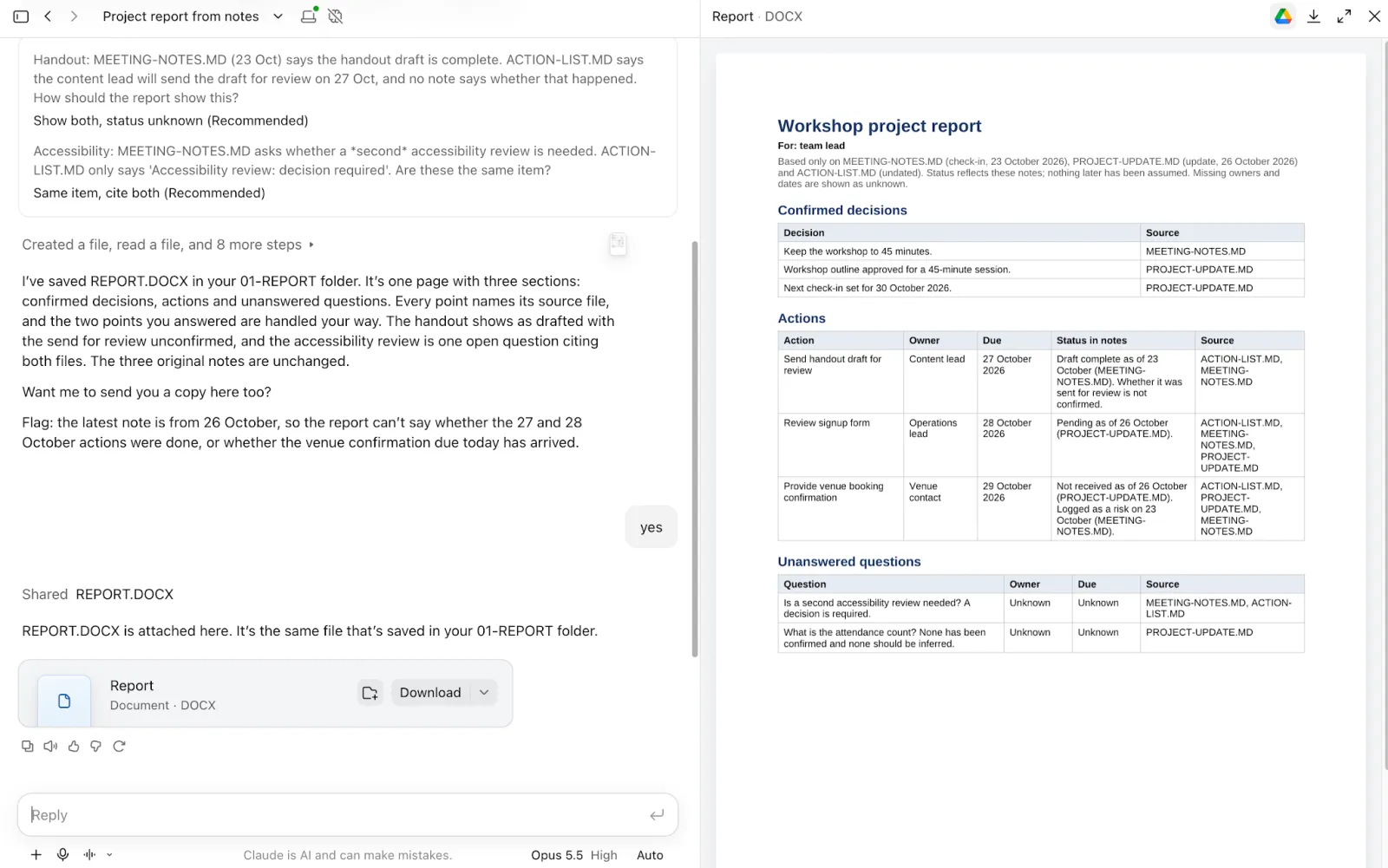
Screenshot: Claude (Anthropic). A report drafted from fictional project notes, with source references and missing owners and dates marked as unknown.
2. Clean up a spreadsheet
Now Cowork will clean up 320 fake workshop records with duplicate rows, inconsistent labels, missing values. The idea is to create a workbook that maintains the original data, logs the changes, and highlights anything that requires my judgment.
Select the spreadsheet you want to clean up and share a copy with Cowork. Scroll through the copy and remove any personal or confidential information that you shouldn’t be sharing. Tailor this brief to your data:
Create CLEANED-RECORDS.XLSX from this spreadsheet. Preserve the original data on its own sheet. Standardize status labels and unambiguous dates, remove only exact duplicate rows, flag missing values or uncertain dates without guessing. Add a change log with before-and-after row counts. Leave the source file unchanged, ask if a cleanup rule is unclear.
Read Claude’s summary of what it changed, such as how many duplicate rows it removed and which labels it standardized. Review any items it left unresolved, then spot-check a few changed rows before using the workbook.
If you want to work inside Microsoft Excel afterward, the Claude for Excel guide covers the separate add-in workflow.
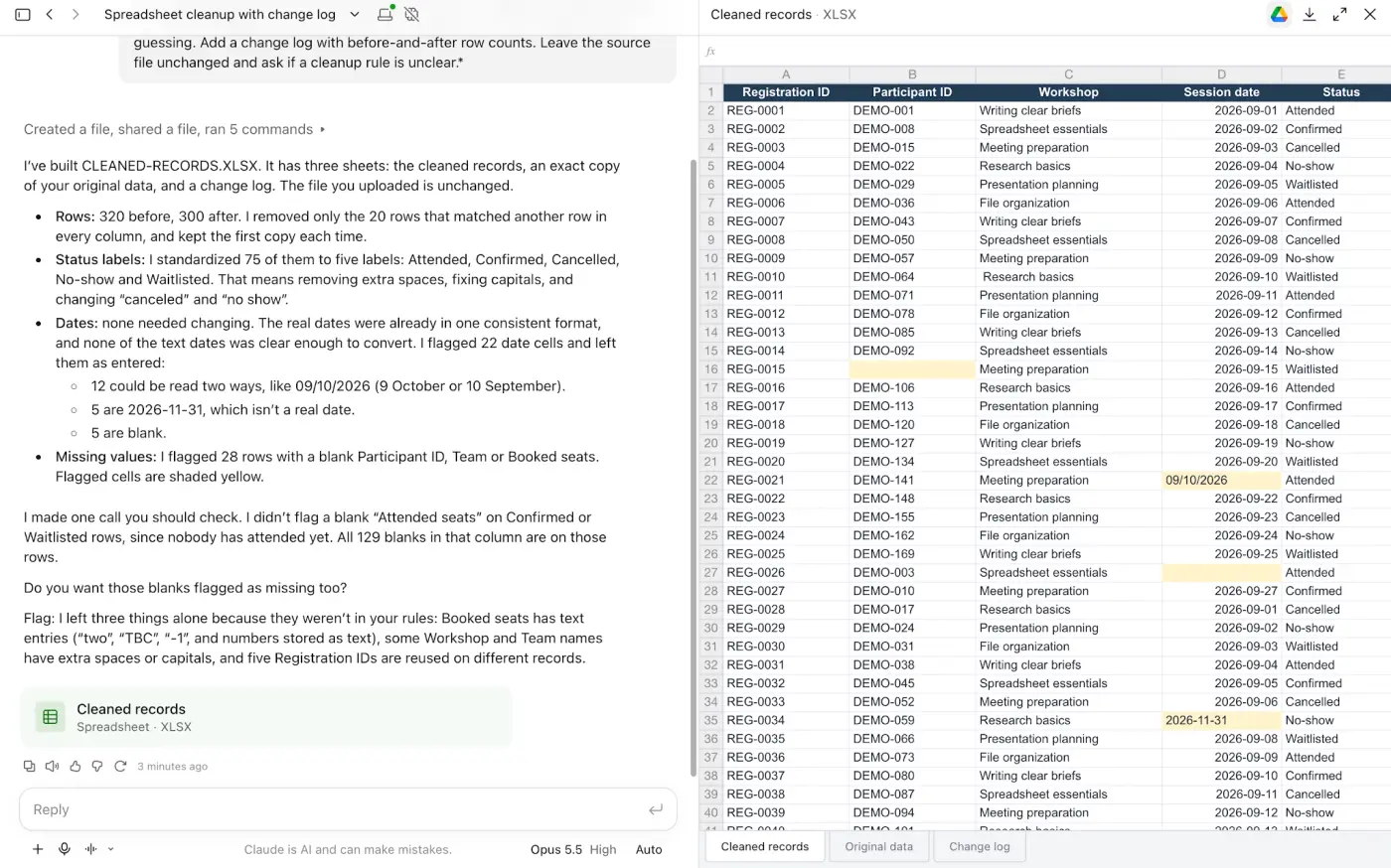
Screenshot: Claude (Anthropic). Claude reports removing 20 exact duplicate rows from the fictional dataset and highlights missing values and uncertain dates for review.
3. Organize a folder copy
I’ll ask Cowork to organize four demo files: an attendance spreadsheet, two sets of notes, a readme. It should suggest a folder structure before moving anything, then record each file’s original and new location.
For your own files, make a copy of the folder you want to organize and give Cowork access to it. Describe how you’d like the files grouped, or ask for a suggestion. Replace INPUT-COPY below with your folder’s name:
List the files in INPUT-COPY and suggest a folder structure. Show each file’s current location and proposed destination in a table, then wait for my approval. Once I approve, move files only within this folder and record the moves in MOVE-LOG.CSV. Keep the file contents and extensions unchanged. Don’t delete or overwrite files, or remove duplicates. If two files would have the same name in the same folder, ask me what to do.
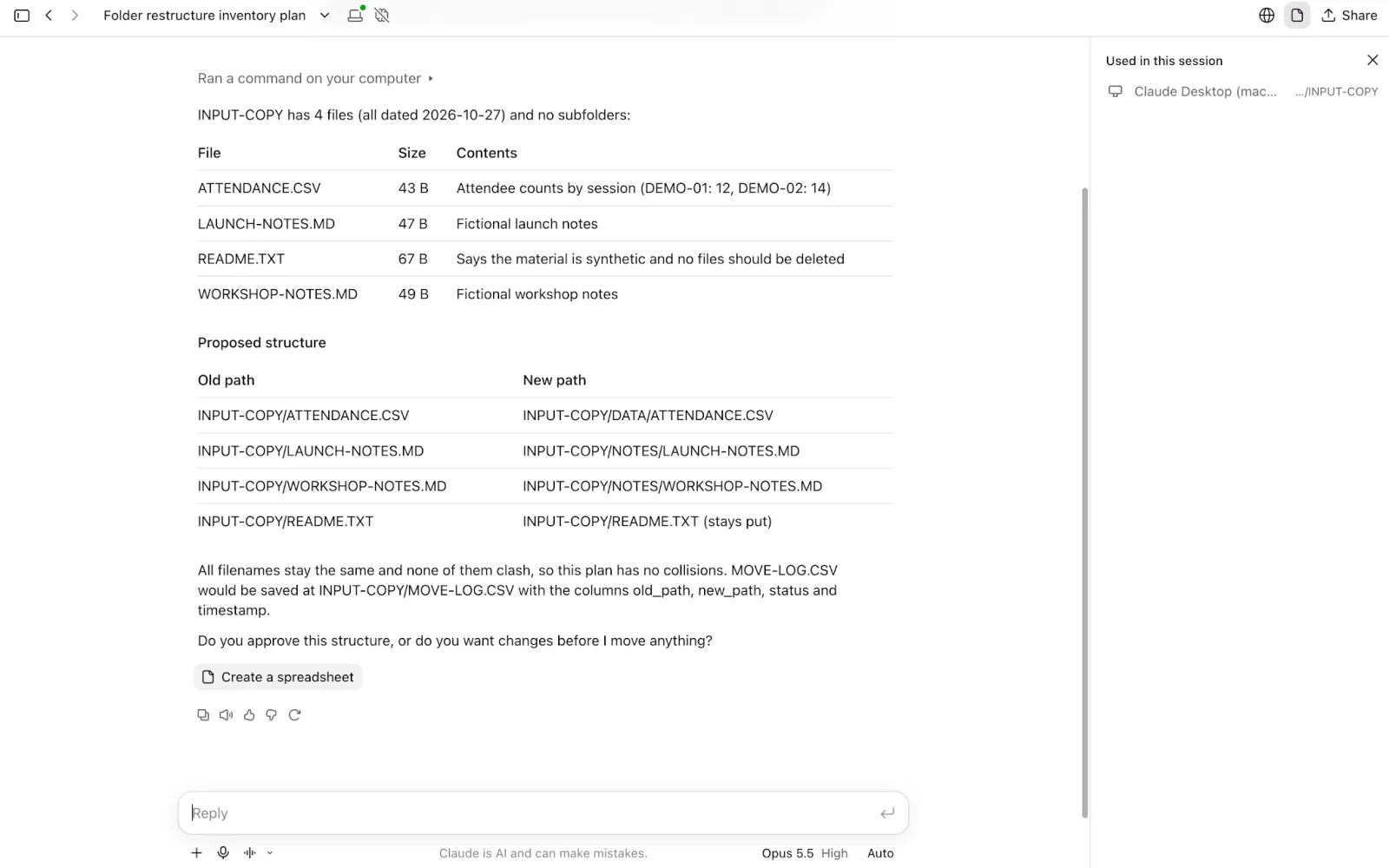
Screenshot: Claude (Anthropic). A proposed folder structure for fictional files, awaiting approval before any moves.
After the moves, compare the inventory with the log and open sample files. A tidy-looking folder is only one check; the files and their contents should still be accounted for.
4. Research five competitors or vendors
I’ll ask Cowork to compare five vendors in a spreadsheet using the same criteria for each. It should include links supporting its findings and flag anything it can’t confirm.
For your own comparison, put the company names and criteria directly in the prompt. Add their official websites if you have them, then adapt this brief:
Compare [five company names] on [criteria, such as task lists, calendar views, file attachments, and export options]. Use current official websites. Include the supporting URL and the date you checked it for each finding. Mark anything you can’t confirm as unknown, and keep your conclusions separate from the facts. Save the comparison as COMPARISON.XLSX. Don’t create accounts, submit forms, or contact the companies.
Open every supporting page before relying on the matrix.
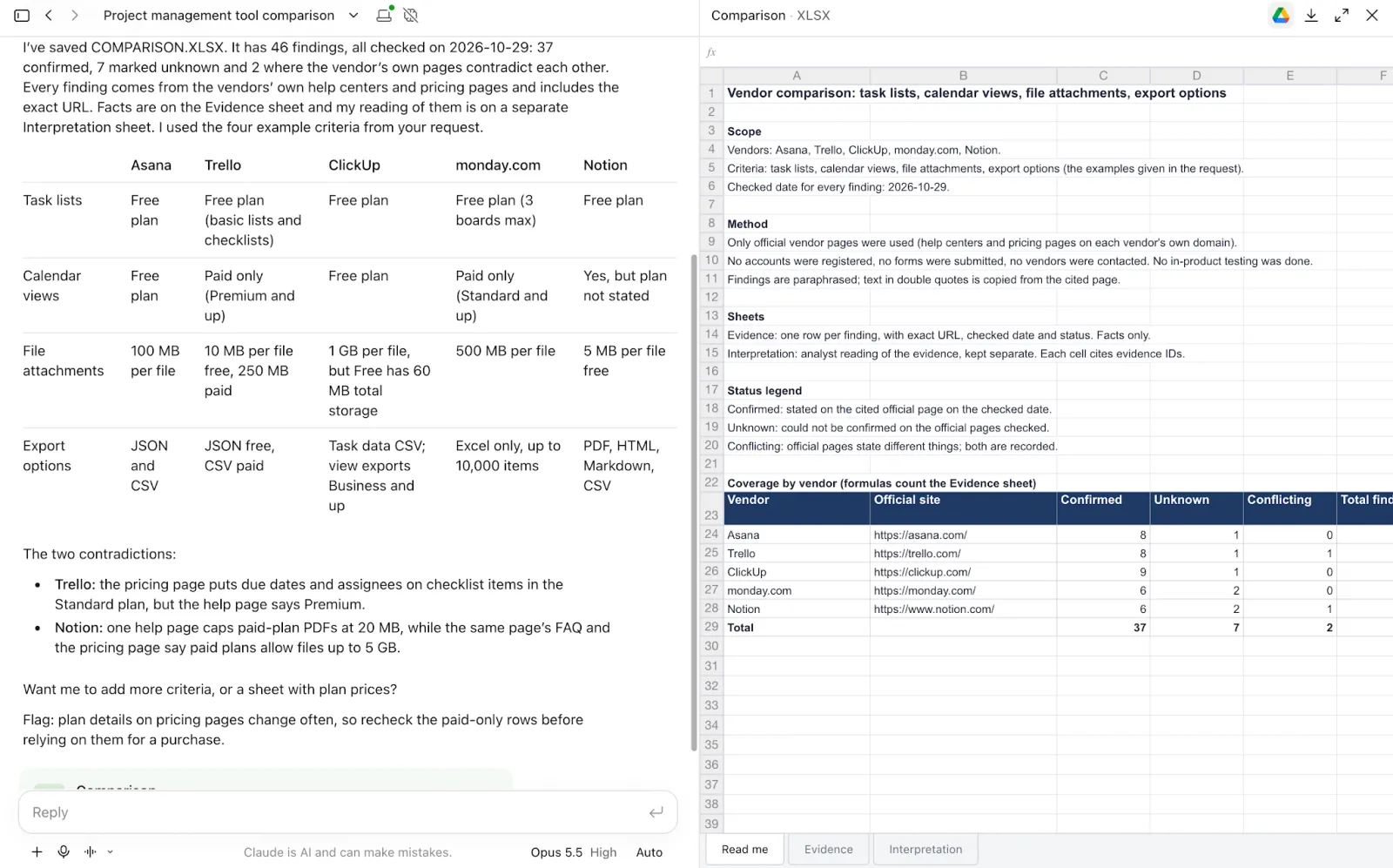
Screenshot: Claude (Anthropic). A comparison of five project management tools, with Claude flagging missing information and conflicting source claims for review.
5. Draft a slide deck
I’ll ask Cowork to take a fictional workshop brief and create a six-slide update for the team. I want the draft to be editable and to show progress, risks and next steps, and to flag anything missing for my review.
For your own presentation, attach your notes/documents or give Cowork access to their folder. Define your audience, purpose and number of slides and rename the brief below replacing WORKSHOP-BRIEF.MD with your file name(s):
Create a six-slide team-update draft from WORKSHOP-BRIEF.MD. Cover the purpose, completed work, pending work, risks, open decisions, and next steps. Use only supplied facts. Keep the text editable, use simple layouts, and put source filenames in speaker notes. Add no photos, logos, or invented figures. Save DECK-DRAFT.PPTX and flag missing information.
Open the presentation and check every slide for factual accuracy, overflow, and unsupported commitments. Test whether the text is editable as requested. For later changes inside Microsoft PowerPoint, see the separate Claude for PowerPoint guide.
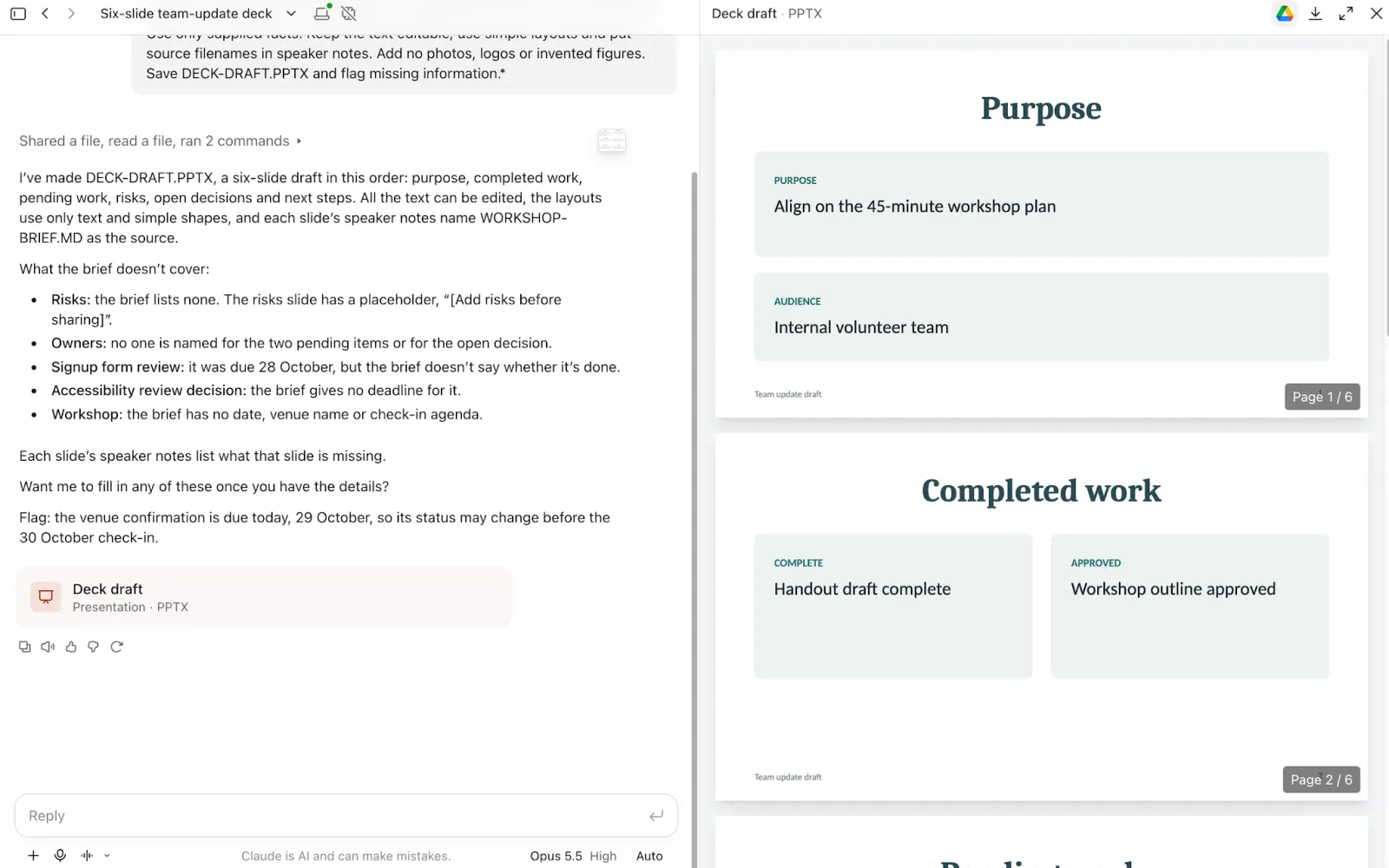
Screenshot: Claude (Anthropic). A six-slide draft from a fictional workshop brief, with missing details listed for review.
6. Triage an inbox without sending replies
I will tell Cowork to export my fictional emails into three categories: messages that require my response, messages that are pending on someone else, and messages that are information only. It should also suggest replies for me to review, leaving the source messages intact.
You can try this with selected emails saved in a file, or connect an inbox and specify which messages to review. The Gmail connector can send messages under its configured permissions, so keep the limits in your brief explicit:
Review only the demonstration messages. Group them into needs my reply, waiting on someone else, and FYI. Explain uncertain priorities and cite each subject line. Save TRIAGE.MD and suggested replies in a separate file. Don’t send, forward, archive, delete, label, change any messages or calendar events.
Read the original messages alongside the proposed priorities and replies. Check the recipient, context, and any implied promise. Gmail attachment contents are not available through the connector. If Claude needs an attachment to understand a message, upload it separately, but only if you’re allowed to share its contents with Claude.
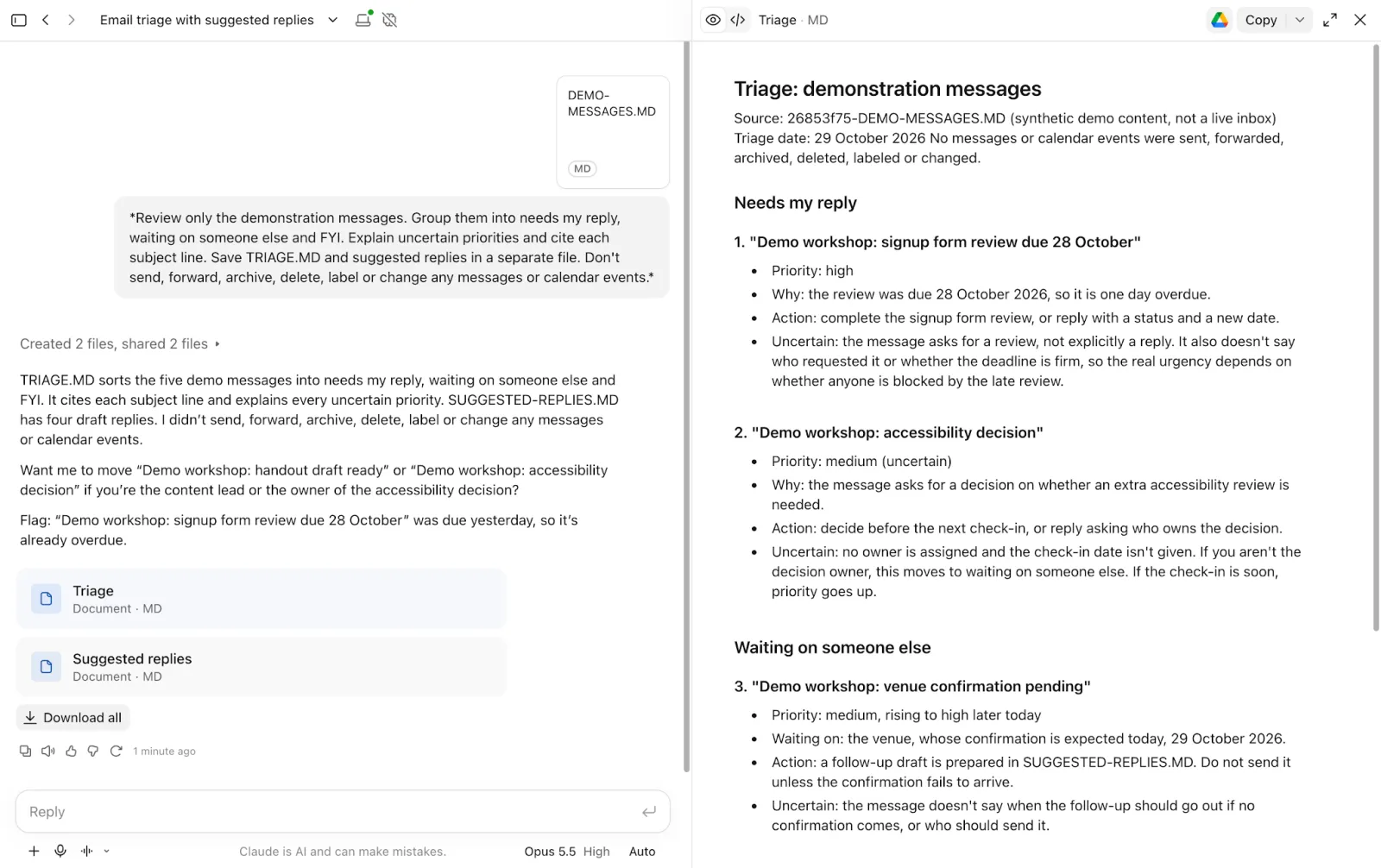
Screenshot: Claude (Anthropic). Triage of exported fictional messages, with suggested actions and uncertainty notes.
7. Create a meeting pack
I’ll use Cowork to prepare for a mock project check-in. It will bring the agenda, earlier notes, and outstanding issues together in a one-page briefing covering what’s been decided and what still needs discussion.
To prepare for your own meeting, share the relevant documents or connect their folder. Give Cowork the meeting date and explain what you want to be ready for. Adapt the filenames and date in this prompt:
Help me prepare for the 30 October check-in. Read AGENDA.MD, PREVIOUS-NOTES.MD, and OPEN-ISSUES.MD, then create a one-page briefing with the meeting’s purpose, decisions already made, issues still open, and five discussion questions. Show which file supports each background point. Point out conflicting or outdated information, and leave gaps marked as unknown. Don’t make up decisions, contact anyone, or change the meeting. Save the document as MEETING-PREP.DOCX.
Compare the proposed agenda with the unresolved issues. A missed deadline does not prove the task was completed afterward. Check the meeting details before sharing the pack.
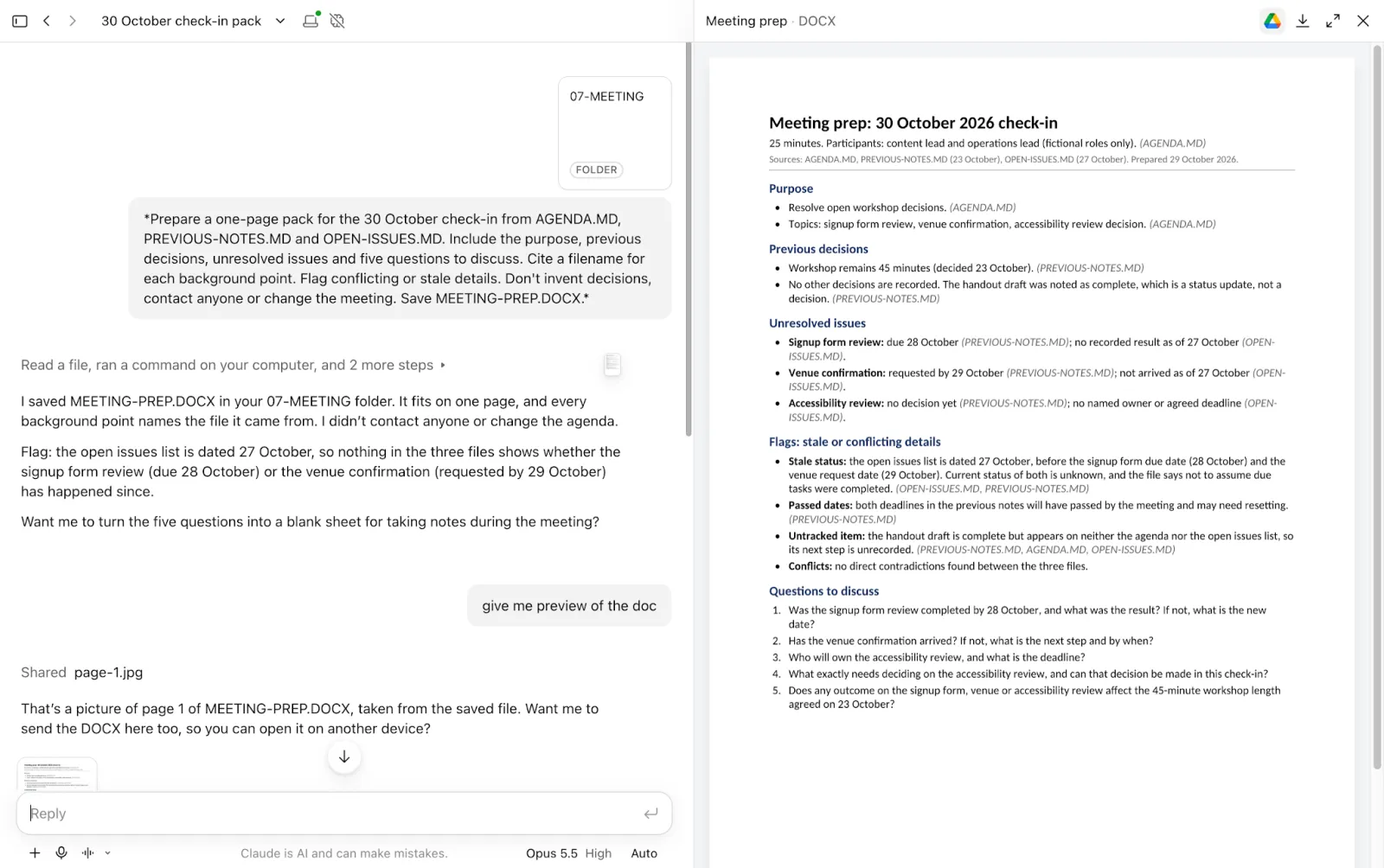
Screenshot: Claude (Anthropic). A one-page pack for a fictional check-in, with source references and outdated status information flagged for review.
8. Draft a weekly status update
I’ll ask Cowork to compare this week’s fictional project notes with the previous status report and draft an update. It should show what’s changed, what’s still in progress, what’s blocked, and which details are missing.
To adapt this to your work, share your latest notes and a previous report, if you have one. Specify the reporting period, audience, status categories. Replace the example date and filenames in the brief below, then review the first draft before scheduling recurring updates:
Draft the update for the week ending 30 October from these two files. Separate completed, in progress, blocked, and next week. Cite the evidence for each status, and leave unconfirmed progress as unknown. Add a missing-inputs list. Save WEEKLY-STATUS.MD without posting or sending it. Don’t invent owners, completion dates, or new commitments.
Check each completed item against the current log. Once a manual run is useful, you can ask Claude to repeat the draft on a schedule and review the saved instructions and cadence. Scheduled tasks run in the cloud even when your computer is off. However, if a task needs files stored on your computer, keep that computer awake and online with Claude Desktop open so Claude can access the connected folder.
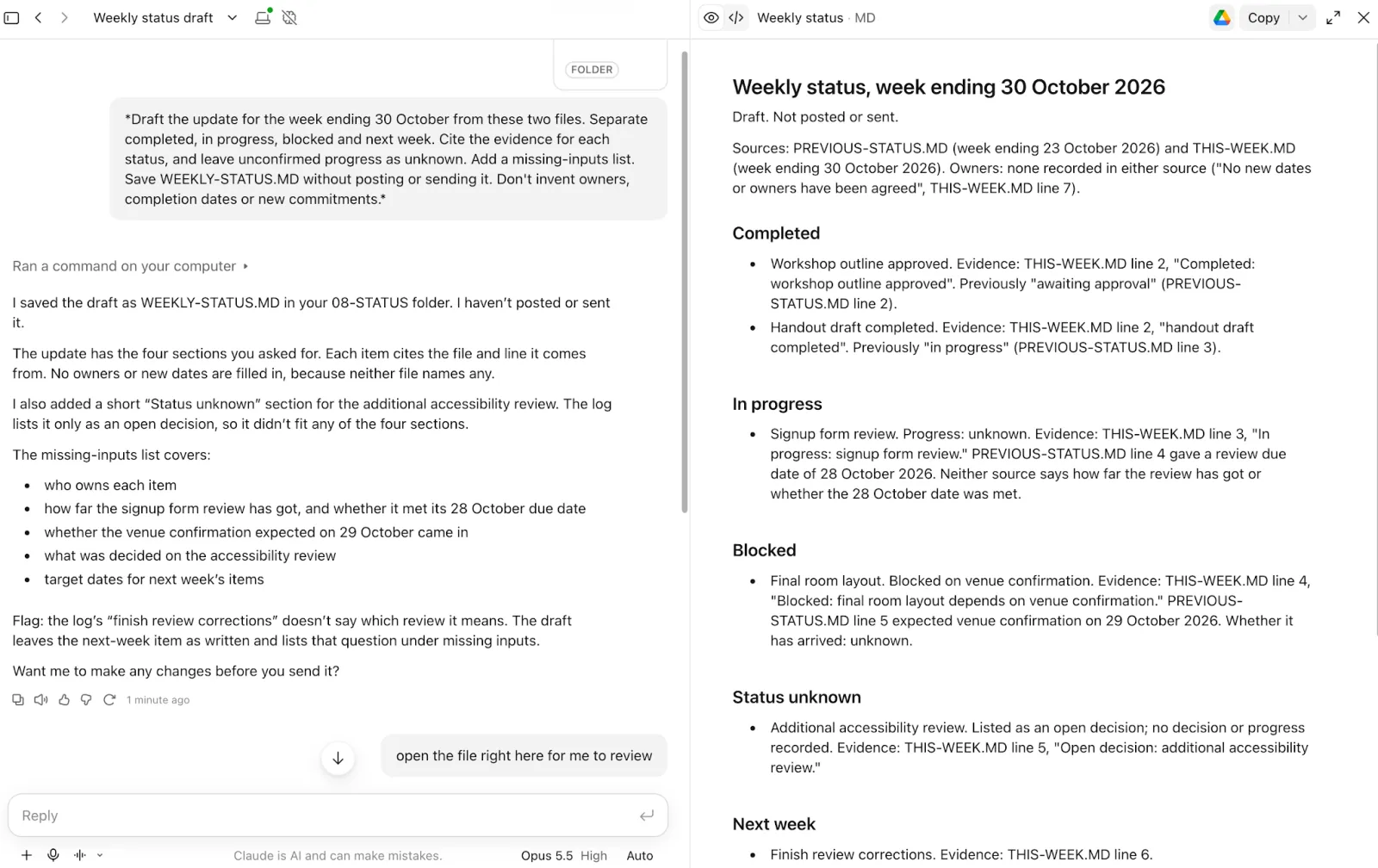
Screenshot: Claude (Anthropic). A weekly update drafted from fictional project logs, with source references and unconfirmed details left unknown.
Run Cowork tasks from your phone
You can start a task in Claude Mobile or continue one you started on your computer.
- Update Claude for iOS or Android and sign in to the same account you use on your computer.
- Start a new task with uploaded files or connected apps, or open an existing task to check progress, answer questions, or give further instructions.
- Review the result and open any files Claude created.
If the task needs files from a folder on your computer, start it in Claude Desktop first. You can then continue from your phone, but leave the desktop app open so Claude can still access that folder.
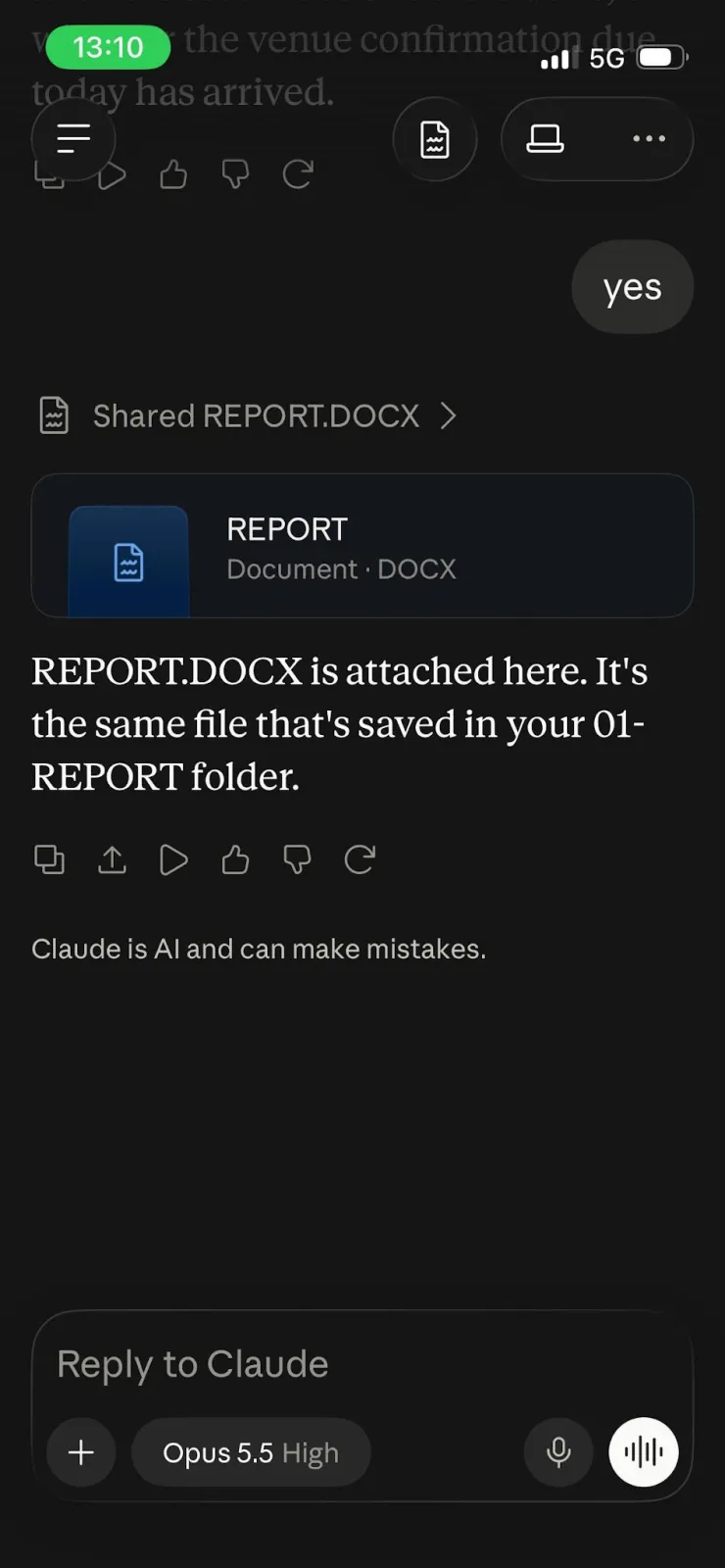
Screenshot: Claude (Anthropic). Opening the desktop report task on a phone, with REPORT.DOCX available in the conversation.
Skills, plugins, and connectors extend the workflow
Skills provide reusable instructions or specialist workflows. A skill saves a method, such as how to format a weekly report, that Claude loads and applies when relevant to a task.
You can use Anthropic’s built-in skills, add skills from other creators, or create your own. Manage them in Customize > Skills, with file creation/code execution enabled where required. The Claude Skills guide explains how to get started.
Record a skill can turn a demonstration into a proposed skill for review. Close sensitive apps before recording, then follow the separate Record a skill walkthrough for that process.
Connectors give Claude access to services such as Gmail or Google Drive. Review the connected account and the tools allowed for the conversation. Available actions depend on the source account, connector, and organization settings.
Plugins bundle capabilities such as ready-made skills, connectors, and subagents. Browse Customize > Plugins and inspect what a plugin adds before installing it. A plugin containing a local MCP server can run code on your computer, so its source and permissions matter.
Browser use is another route. Claude Desktop includes a built-in browser, while Claude in Chrome works through your Chrome environment. The built-in browser needs the desktop app open; review any account you sign into there because logins can persist across sessions.
Claude Cowork pricing and usage limits
These are advertised US web prices before tax, verified October 27, 2026; local and app-store prices may differ.
- Pro: $20 per month, or $200 billed annually. Includes Cowork access and a usage allowance that resets every five hours, plus a separate weekly limit. Anthropic does not publish a guaranteed number of Cowork tasks you can complete with that allowance.
- Max 5x: $100 per month, with five times Pro’s usage allowance per five-hour session.
- Max 20x: $200 per month, with 20 times Pro’s usage allowance per five-hour session. Both Max tiers also have weekly limits.
- Team: Standard seats cost $25 monthly or $20 per seat/month billed annually; Premium seats cost $125 or $100 respectively.
- Enterprise: $20 per seat/month billed annually, with a 20-seat minimum, plus usage at API rates.
Use the Claude pricing guide for the fuller breakdown.
On Pro and Max, chat, Cowork, and Claude Code share your plan’s allowance. Each step of a Cowork task uses some of it, so a long report with large files can consume more than several short requests. The model and tools used also affect how quickly you reach a limit.
Check Settings > Usage for your remaining allowance and reset times. If you reach a limit, you can wait for it to reset or enable usage credits for an additional charge. The Claude usage-limits guide explains what consumes your allowance. Enterprise usage billing follows its plan terms.
Common Cowork problems and fixes
Match the symptom to its likely setup check before expanding access or repeating the entire task.
| Problem | What to check |
|---|---|
| No Cowork button | Your account may have unified Claude. Describe the task in the normal message box. |
| Local file unavailable | Check the connected folder, open desktop app, and whether the session qualifies for local access. |
| Connector cannot find an item | Check the authenticated account, source permissions, and connection status; reconnect if needed. |
| Skill does not run | Check file creation/code execution, the skill toggle, and any organization restriction. Name the skill explicitly. |
| Claude gives you text instead of a downloadable file | Ask Claude to create a file and specify the format, such as DOCX or XLSX. In Settings > Capabilities, make sure Create and edit files is enabled. In older settings layouts, this is called Code execution and file creation. |
If the same context keeps getting lost, keep essential decisions in a reviewable source file and refer to it again.
Keep up with Cowork and build broader AI skills
To explore Cowork further and keep up with changes, follow Coursiv’s Claude courses. Coursiv offers courses on Claude, other AI tools, specific work tasks, as well as broader certificate programs.
You can try Coursiv as your learning platform with its 28-Day AI Certificate Program. It offers short lessons that fit into a busy schedule and has built in practice. You can also browse individual courses by what you want to learn next.
This article is independent and is not affiliated with or endorsed by Anthropic.
Here, I will ask Cowork to clean 320 fictional workshop records with duplicate rows, inconsistent labels, and missing values. The idea is a workbook with the original data, where I can note the changes and where I can flag anything that requires my judgment.
If you want structured practice with briefs like these, Coursiv’s AI Mastery Certificate Program is a CPD-accredited, bite-sized program on web and mobile that ends with a certificate of completion.